使用 Prometheus 收集 Docker 指标
Prometheus 是一个开源的系统监控和警报工具包。您可以将 Docker 配置为 Prometheus 目标。
警告
可用的指标及其名称正在积极开发中,随时可能发生变化。
目前,您只能监控 Docker 本身。您目前无法使用 Docker 目标监控您的应用程序。
示例
以下示例向您展示如何配置您的 Docker 守护进程,在本地机器上设置 Prometheus 作为容器运行,并使用 Prometheus 监控您的 Docker 实例。
配置守护进程
要将 Docker 守护进程配置为 Prometheus 目标,您需要在 daemon.json 配置文件中指定 metrics-address。该守护进程默认期望文件位于以下位置之一。如果文件不存在,请创建它。
- Linux:
/etc/docker/daemon.json - Windows Server:
C:\ProgramData\docker\config\daemon.json - Docker Desktop:打开 Docker Desktop 设置并选择 Docker Engine 以编辑文件。
添加以下配置:
{
  "metrics-addr": "127.0.0.1:9323"
}
保存文件,或者对于 Mac 或 Windows 版 Docker Desktop,保存配置。重启 Docker。
Docker 现在在环回接口的 9323 端口上暴露了与 Prometheus 兼容的指标。
创建 Prometheus 配置
复制以下配置文件并将其保存到您选择的位置,
例如 /tmp/prometheus.yml。这是一个标准的 Prometheus 配置文件,
除了在文件底部添加的 Docker 任务定义。
# my global config
global:
  scrape_interval: 15s # Set the scrape interval to every 15 seconds. Default is every 1 minute.
  evaluation_interval: 15s # Evaluate rules every 15 seconds. The default is every 1 minute.
  # scrape_timeout is set to the global default (10s).

  # Attach these labels to any time series or alerts when communicating with
  # external systems (federation, remote storage, Alertmanager).
  external_labels:
    monitor: "codelab-monitor"

# Load rules once and periodically evaluate them according to the global 'evaluation_interval'.
rule_files:
  # - "first.rules"
  # - "second.rules"

# A scrape configuration containing exactly one endpoint to scrape:
# Here it's Prometheus itself.
scrape_configs:
  # The job name is added as a label `job=<job_name>` to any timeseries scraped from this config.
  - job_name: prometheus

    # metrics_path defaults to '/metrics'
    # scheme defaults to 'http'.

    static_configs:
      - targets: ["localhost:9090"]

  - job_name: docker
      # metrics_path defaults to '/metrics'
      # scheme defaults to 'http'.

    static_configs:
      - targets: ["host.docker.internal:9323"]
在容器中运行 Prometheus
接下来,使用此配置启动 Prometheus 容器。
$ docker run --name my-prometheus \
    --mount type=bind,source=/tmp/prometheus.yml,destination=/etc/prometheus/prometheus.yml \
    -p 9090:9090 \
    --add-host host.docker.internal=host-gateway \
    prom/prometheus
如果您使用的是 Docker Desktop,--add-host 标志是可选的。该标志确保主机的内部 IP 暴露给 Prometheus 容器。Docker Desktop 默认会这样做。主机 IP 暴露为 host.docker.internal 主机名。这与上一步中 prometheus.yml 中定义的配置相匹配。
打开 Prometheus 仪表板
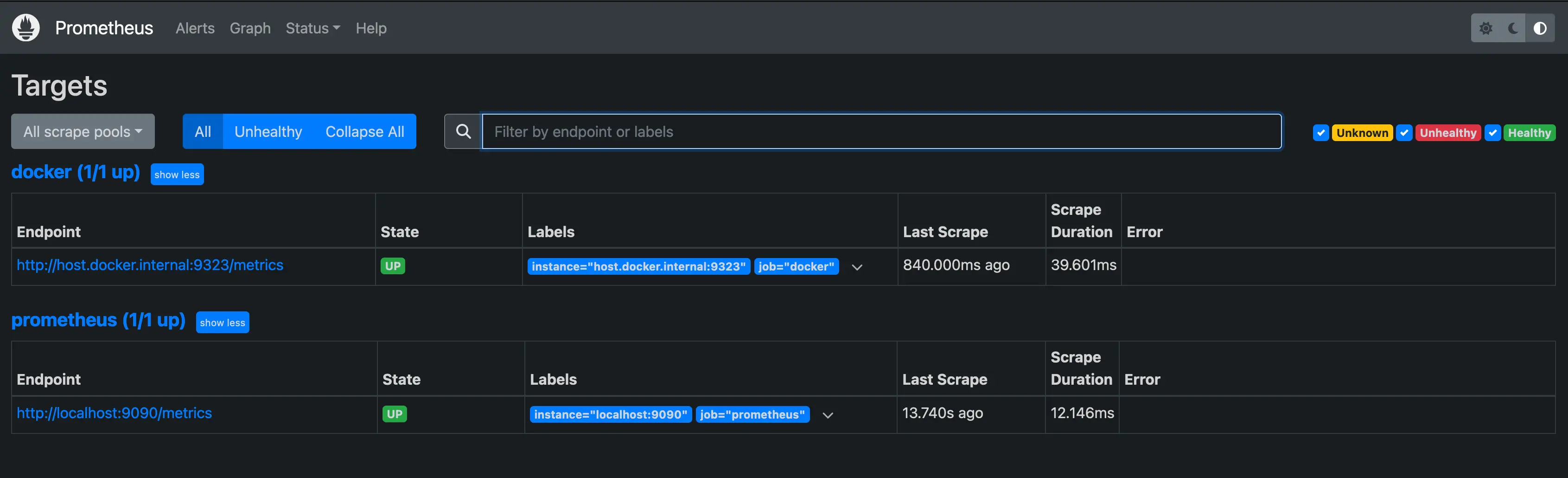
验证 Docker 目标是否列在 http://localhost:9090/targets/ 处。
注意
如果您使用 Docker Desktop,则无法直接访问此页面上的端点 URL。
使用 Prometheus
创建一个图表。在 Prometheus UI 中选择 Graphs 链接。从 Execute 按钮右侧的下拉框中选择一个指标,然后点击 Execute。下面的截图显示了 engine_daemon_network_actions_seconds_count 的图表。
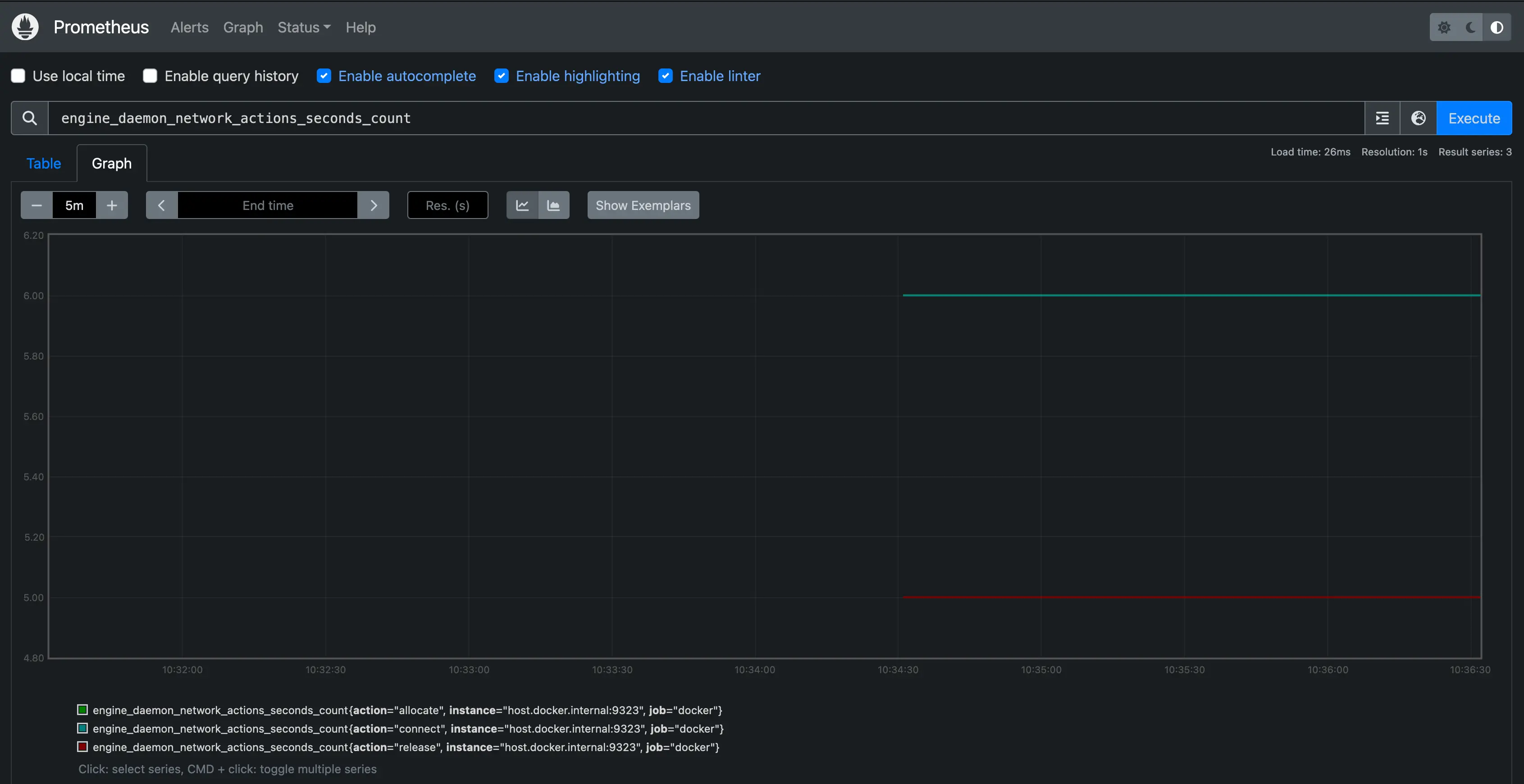
该图表显示了一个相当空闲的 Docker 实例,除非您已经在系统上运行了活跃的工作负载。
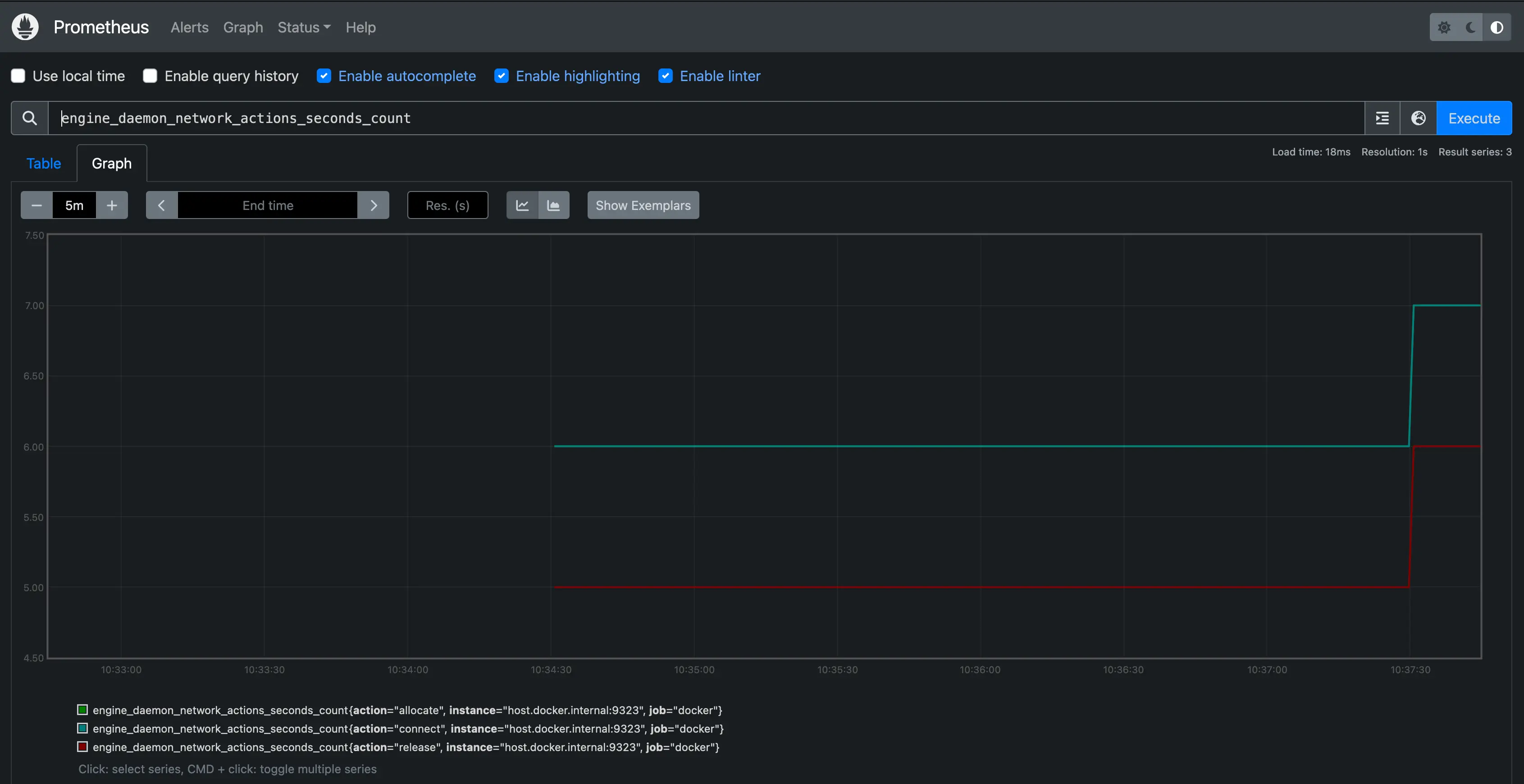
为了让图表更加有趣,请运行一个使用某些网络操作的容器,通过启动包管理器下载一些软件包:
$ docker run --rm alpine apk add git make musl-dev go
等待几秒钟(默认抓取间隔为15秒),然后重新加载您的 图表。您应该会看到图表上出现一个上升趋势,显示您刚刚运行的 容器所导致的网络流量增加。
后续步骤
此处提供的示例展示了如何在本地系统上将 Prometheus 作为容器运行。实际上,您可能会在另一个系统上或作为云服务运行 Prometheus。在这些情况下,您也可以将 Docker 守护进程设置为 Prometheus 目标。配置守护进程的 metrics-addr,并在 Prometheus 配置中添加守护进程的地址作为抓取端点。
- job_name: docker
  static_configs:
    - targets: ["docker.daemon.example:<PORT>"]
有关 Prometheus 的更多信息,请参阅 Prometheus 文档